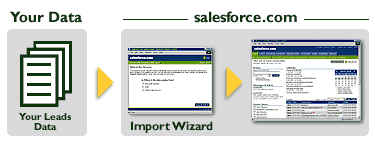
Here is a page from the Help feature included in Salesforce.com
showing the procedure developed by Brian Astle of Oakhurst.

ACT! to Salesforce using ACT!PAK!
ACT! allows you to export contact data in a text-delimited format
which can then be imported. Using a third-party tool, you can also export notes from ACT!
and then import them into accounts and contacts.
Exporting Contacts from ACT!
To export contact data from ACT! (versions 4.0 or 2000), follow
the steps below:
- Launch ACT! and open your database.
- Select File | Data
Exchange | Export....
- Select the file type Text-Delimited.
- Choose a filename and location for the exported data and click Next.
- Select Contact records only.
- Click the Options... button.
- Select Comma for the field separator
character.
- Check the Yes, export field names
check box and click OK.
- Click Next.
- Select All Records and then click Next.
- Leave the export field order list alone, and click Finish.
Exporting Notes from ACT!
Before importing your ACT! notes, you must import your ACT!
contacts. Using ACT!PAK!, you can export your ACT! notes into a file for import. You can
download ACT!PAK! from www.oakpro.com/prod01_ACTPAK.htm;
the software costs about $99.
To export notes from ACT! (versions 4.0 or 2000), follow the
steps below:
- Install and launch ACT!PAK!.
- Open the ACT! database from which you want to export notes, and
set it up to export to Microsoft Excel.
- In ACT!PAK!, choose Transfer from
the Excel menu.
- In the "Transfer" dialog:
- Choose Contact under Select Record Type.
- Choose Lookup under ACT! Contacts.
- Under Select Fields, make sure Contact Fields is selected in the drop-down menu.
- Add the following fields from the field list on the left to the
list on the right: Company, Last
Name, First Name.
- Change the Select Record Type
selection to Notes/History.
- Under Select Fields, make sure NoteHistory Fields is selected in the drop-down menu.
- Under Select Fields, add the Regarding field to the list of fields in the box on the right.
Add any other note field data you want to export, e.g., Date.
- Under Hold File, select a location
for your export file, and click Transfer.
- When the transfer finishes, locate your exported file and change
its file extension from .txt to .csv.
- Open the file in Excel.
- If necessary, clean up the file prior to importing it. Common
problems include notes that have been broken between columns (this occurs when notes
contain quotation marks).
When importing your data, do not map the note fields until the
final step when you are prompted to map extra fields. Choose "Include in Contact
Note" to import your ACT! notes into salesforce.com contact notes.
See Also: Oakhurst Systems
If you would like to convert from SalesForce.com to
ACT!
click here for the procedure developed by Rick Shaddock