 Microsoft Windows Remote Assistance
support.microsoft.com/en-us/windows/solve-pc-problems-over-a-remote-connection
For Microsoft Windows includes the Remote Assistance feature. It is Free!
Here is how to activate it, so that we can log in to help you. The mouse will move around the desktop just as if we visited you personally. This saves travel time and expense for you.
If you already have done steps 1 through 4, you may go directly to step 5.
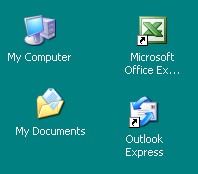
| 1 | Select the desktop of your computer |
 |
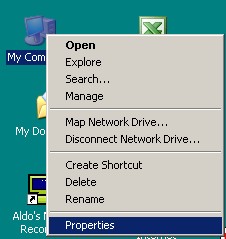
| 2 | Select "My Computer" then right click to select Properties |
 |
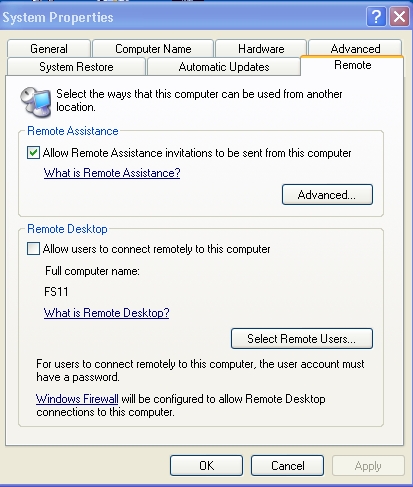
| 3 | On the System Properties tab, select Remote.
If not already selected, please select Remote Assistance so that it is checked on.
|
 |
| 4 | Select the
Advanced button |
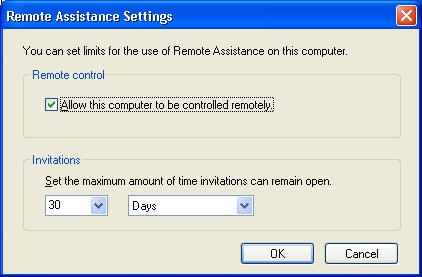 |
| 5 | Select the Start button,
then Help and Support |
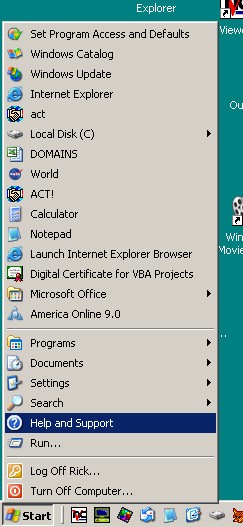 |
| 6 | You will see the Help and Support Center. |
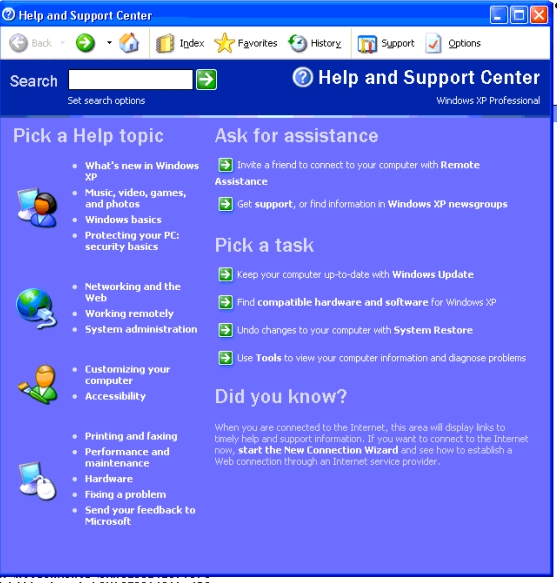 |
| 7 | Select Ask a friend to help and Invite someone to help you |
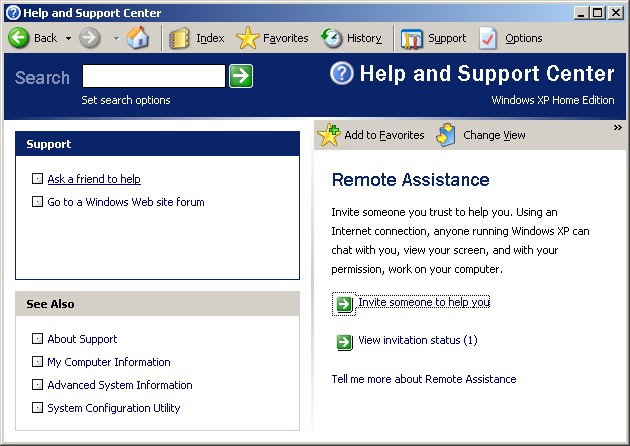 |
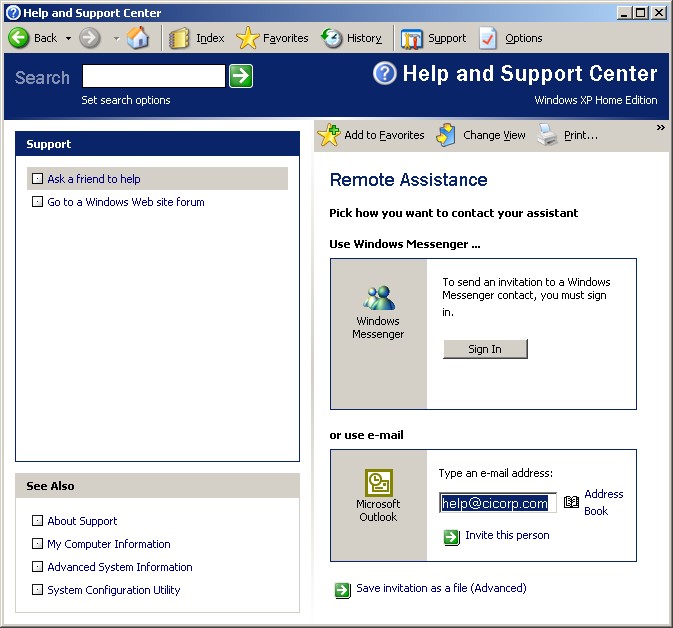
| 8 | In the Microsoft Outlook section, type in the email address Help@CICorp.com then Invite this person |
 |
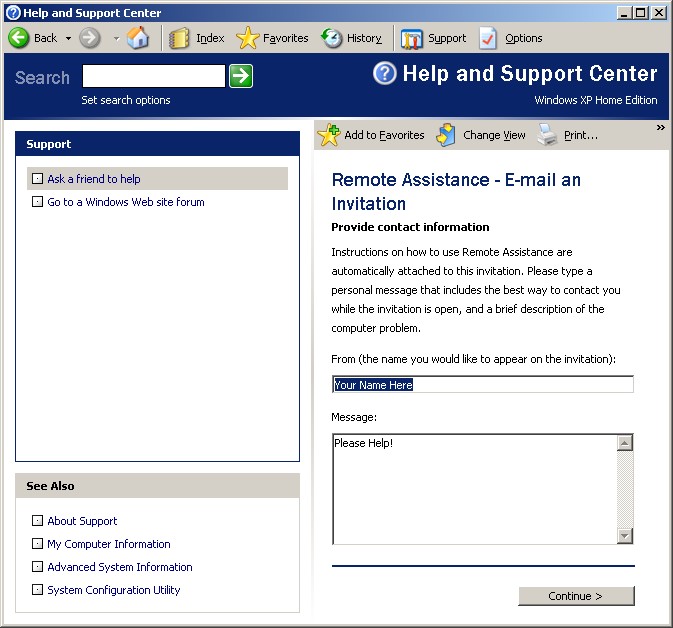
| 9 | Enter the From as your name, plus a Message describing the help you would like, then Continue. |
 |
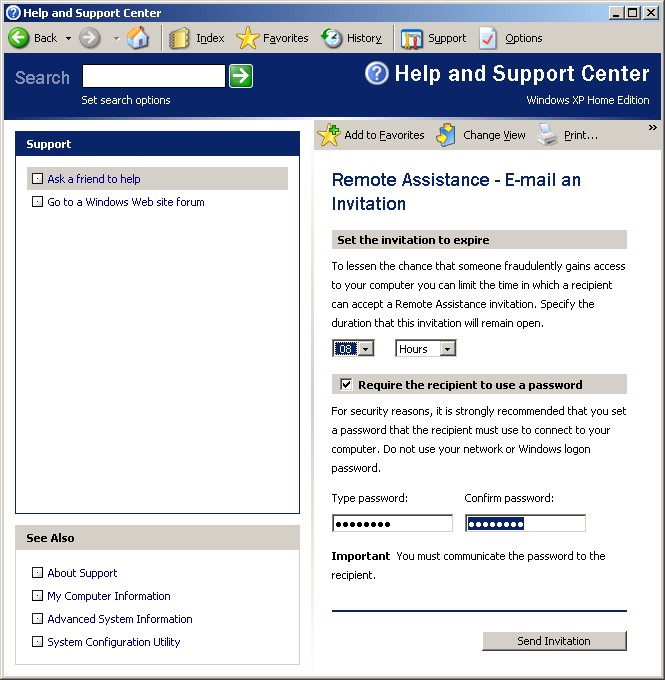
| 10 | Set the invitation to expire in 8 hours (to give us time to respond). Enter a password of your choice. Then call us at 800-319-3190 to let us know what it is, and to arrange a time to log in. Depending on the type of help you need, and our current schedule, we may need more time for the invitation to last. Select Send Invitation. |
 |
| 11 | ||
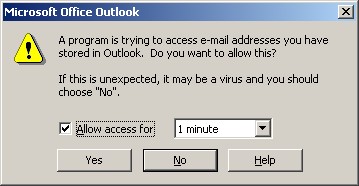
| 12 | You may see the following dialog from Microsoft Outlook for mail initiated from outside Outlook. Select Allow access for 1 minute for the email to go out. |
 |
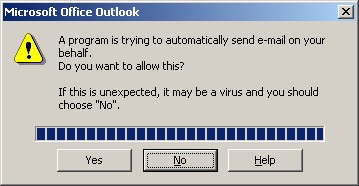
| 13 | A second message will appear. It is ok to select Yes as the invitation is emailed to us. |
 |
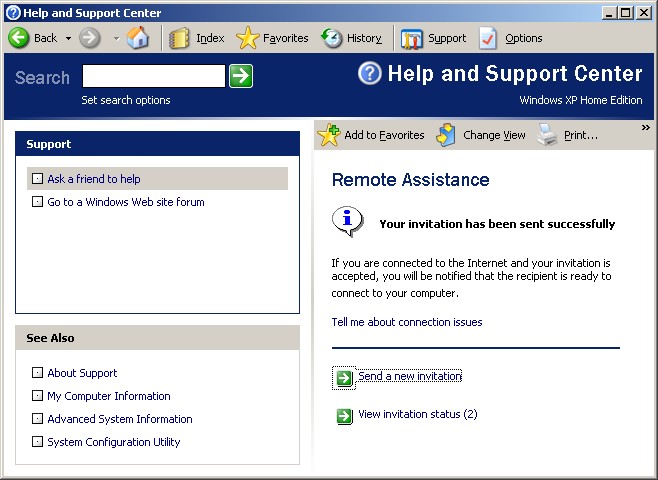
| 14 | You will see a message saying Your invitation has been sent successfully. |
 |
 |
||
 |
||
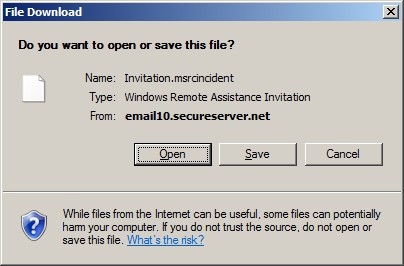 |
||
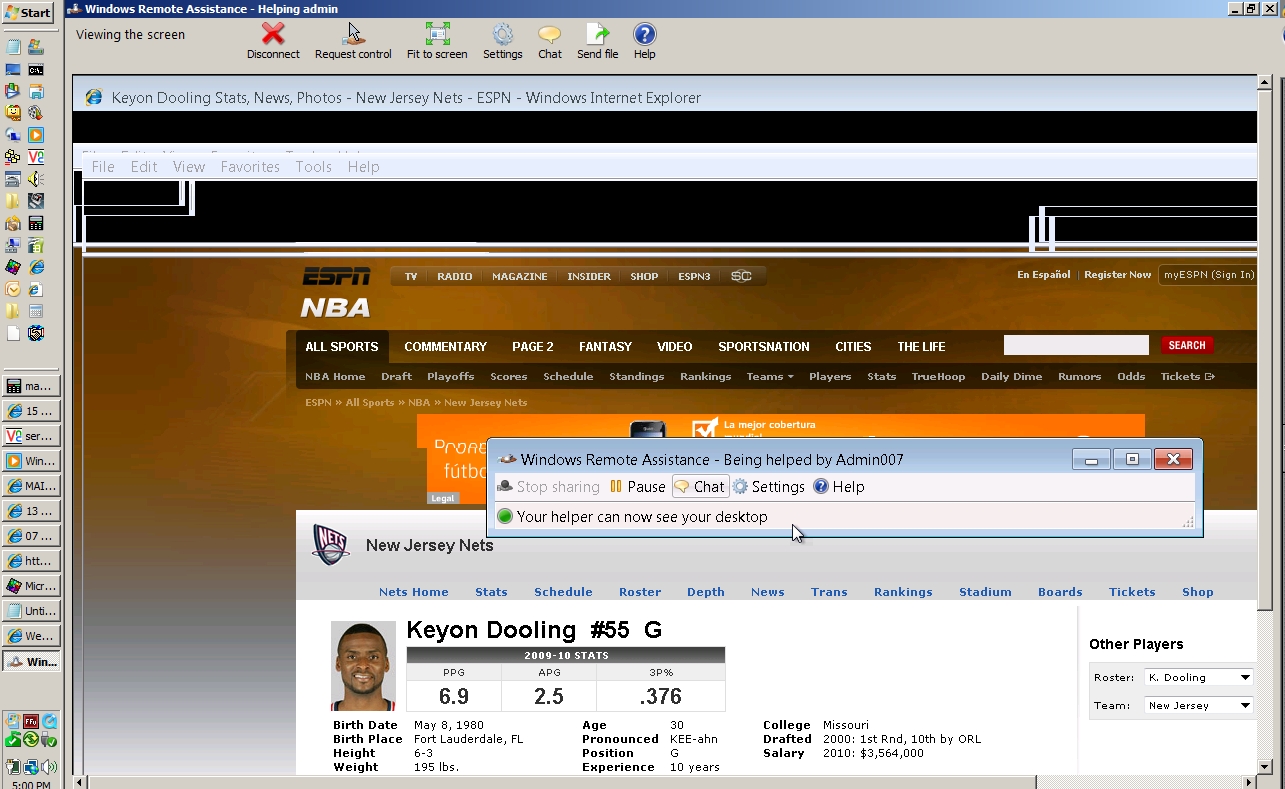 |
||
According to the situation, please look up the Hourly Fees for the consulting at www.CICorp.com/Fees
Enter your name and the billing information at the
www.CICorp.com/Register screen



Thank you for the opportunity to be of service
Windows XP and Remote Assistance are trademarks of Microsoft Corporation