You can import the following types of files into Business
Contact Manager for Outlook:
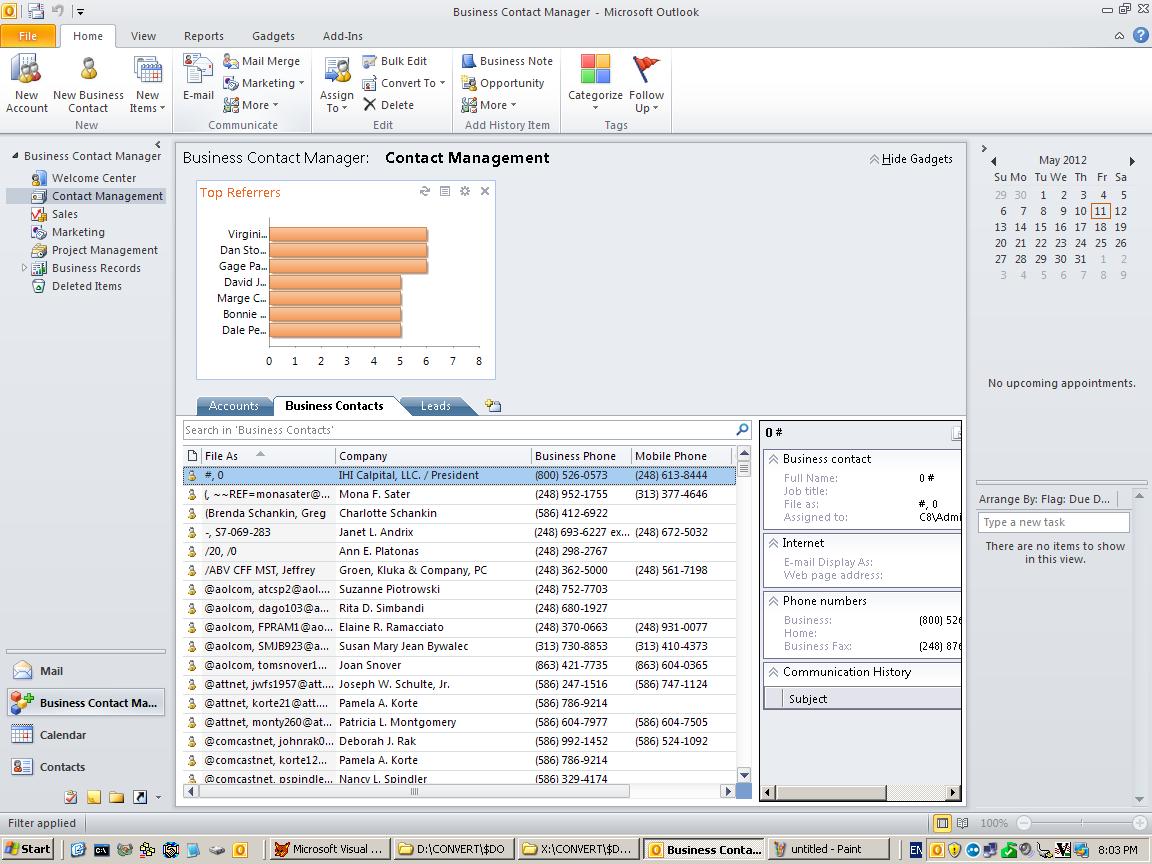
You can also import your Outlook Contacts
folder into Business Contact Manager.
Import a file or your Outlook
Contacts folder
Notes
- Before you begin the import process, make sure that
you have backed up your Business Contact Manager data.
- The import process cannot be reversed automatically.
Once you import items, you must manually delete them to
undo the import.
- On the File menu, point to
Import and Export, and then click
Business Contact Manager for Outlook.
- Click Import a file, and then
click Next.
- Select the type of file that you want to import, or
click Outlook Contacts folder, and
then click Next.
- Follow the instructions in the
Business Data Import/Export Wizard.
To get assistance with a page in the wizard, click
Help on that page.
Import
files from programs such as ACT! and QuickBooks
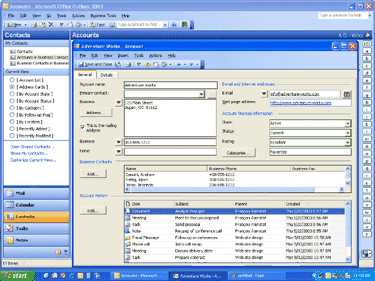
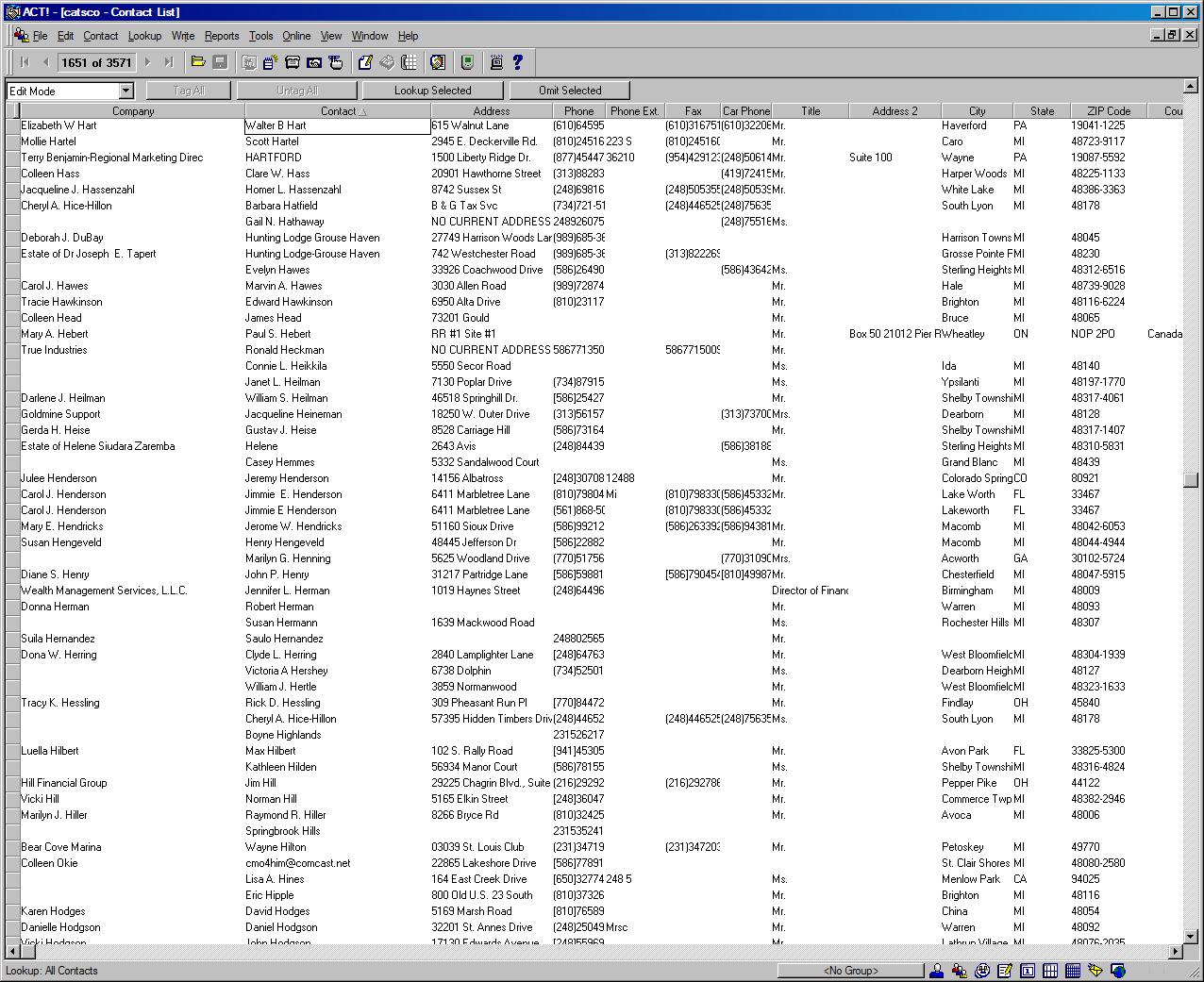
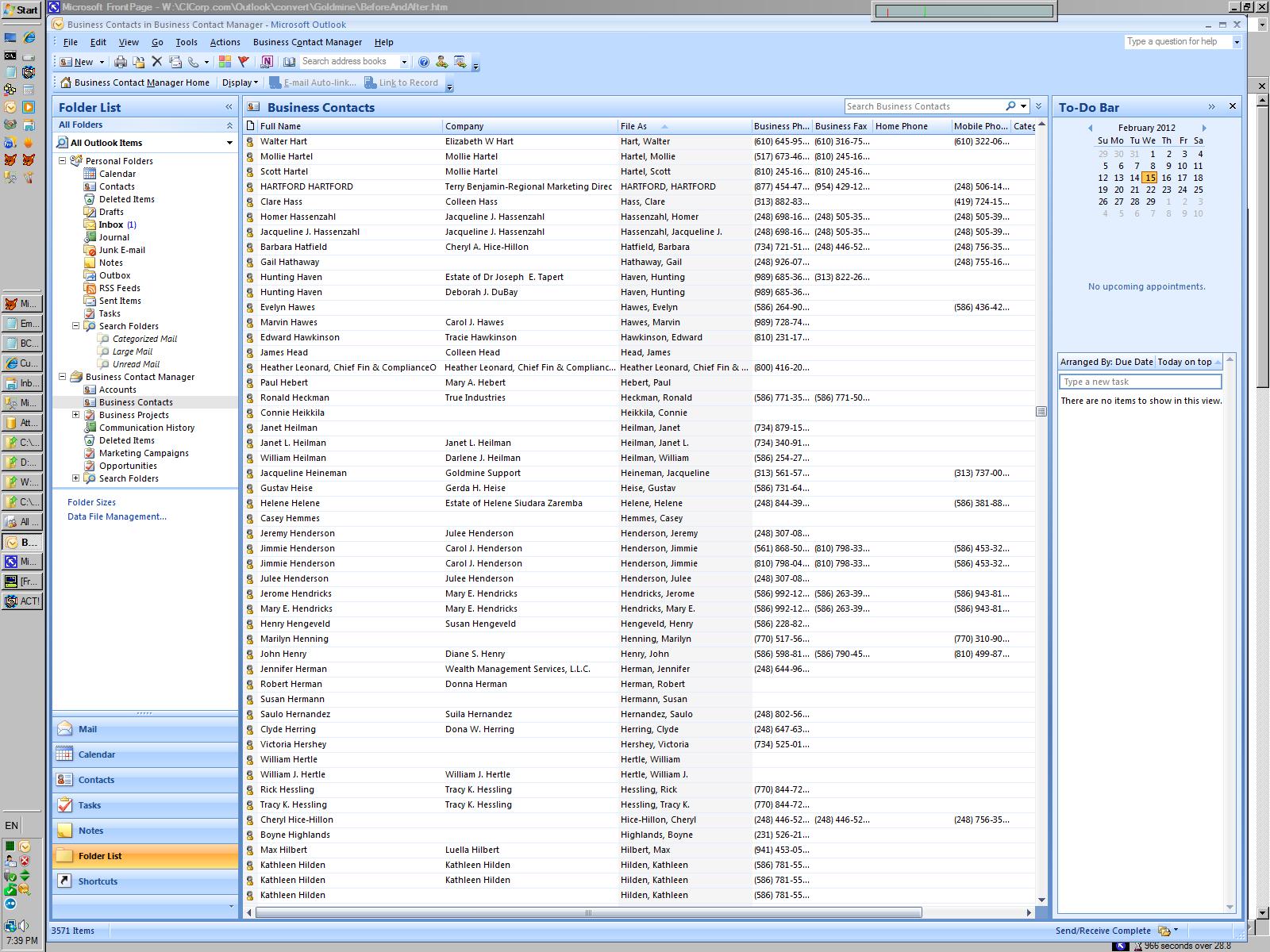
You can import files from some programs, such as ACT! and
Quickbooks, into Business Contact Manager for Outlook. To
import your data, use the Data Conversion
Tool within the Business Data
Import/Export Wizard to convert your data from ACT!
(.dbf) or Quickbooks (.IIF) files so that you can import
it into Business Contact Manager. Once the data is
converted, it will be saved in a Business Contact Manager
(.bcm) file format.
If your data is in a format that is not listed in the
Business Data Import/Export Wizard,
you need to first save the data as either a
comma separated values file (.csv) (comma
separated values file: A text file that contains data that
is separated by commas (also known as a comma-delimited
file). You can create and save a .csv file in programs
such as Notepad or Excel.) or an Excel
workbook (.xls) file, and then import the file by using
the instructions in Import files from
other Microsoft programs.
Import a file from ACT! or QuickBooks
Notes
- Before you begin the import process, make sure that
you have backed up your Business Contact Manager data.
- The import process cannot be reversed automatically.
Once you import items, you must manually delete them to
undo the import.
- On the File menu, point to
Import and Export, and then click
Business Contact Manager.
- Click Import a file, and then
click Next.
- Select the type of ACT! or QuickBooks file that you
want to import, and then click Next.
- Click Convert Data to convert
your data into Business Contact Manager file format.
- In the Data Conversion Tool,
click Next.
- Select the program that created the data that you
want to convert, and click Next.
- Browse to the file that you want to convert, and
click Next,
- Select the location for the converted file, and
click Next.
- When you are ready to convert the data, click
Next.
- Click Close.
- After you convert your data, return to the
Business Data Import/Export Wizard
and follow the instructions to import your data.
To get assistance with a page in the wizard, click
Help on that page.
Note Business Contact Manager
for Outlook cannot import ACT! files that are read-only.
Read-only is an attribute or property of a file. To change
the read-only attribute, find the file on your computer,
right-click it, click Properties, and
then clear the Read-only check box. For
more information about how to change the read-only
attribute of a file, see Windows Help.